Scan equipment out to your techs
Sign in, find the tech, scan their ONTs and Extenders out. You can help any tech, and enter an Inventory Scan for one who can't.
Know this first
Scan out
Sign in
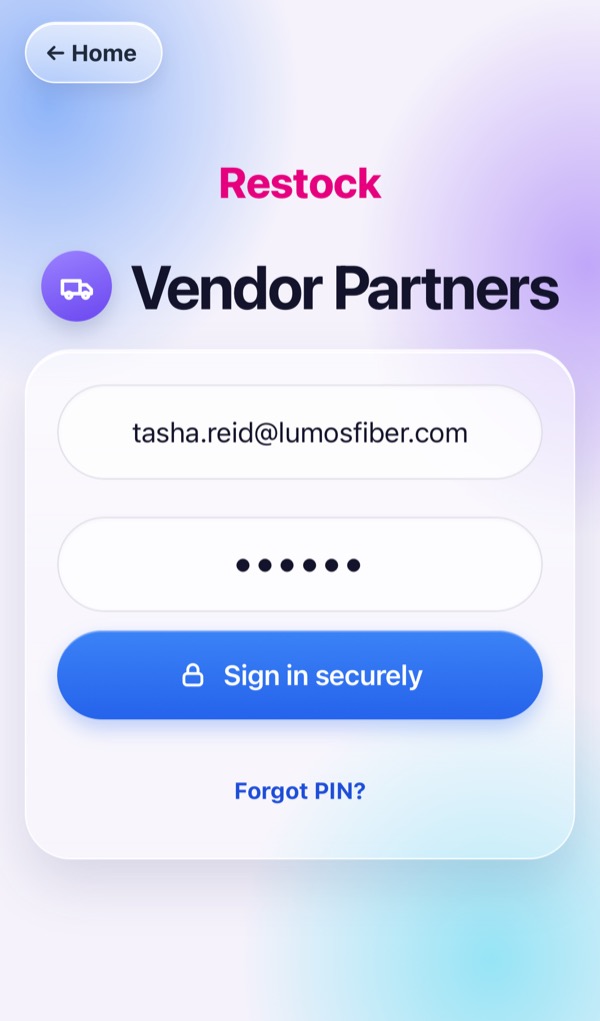
Open restock.svcops.net → Vendor Partners. Type your email and your PIN under Credentials, then Sign in securely.
Find the tech
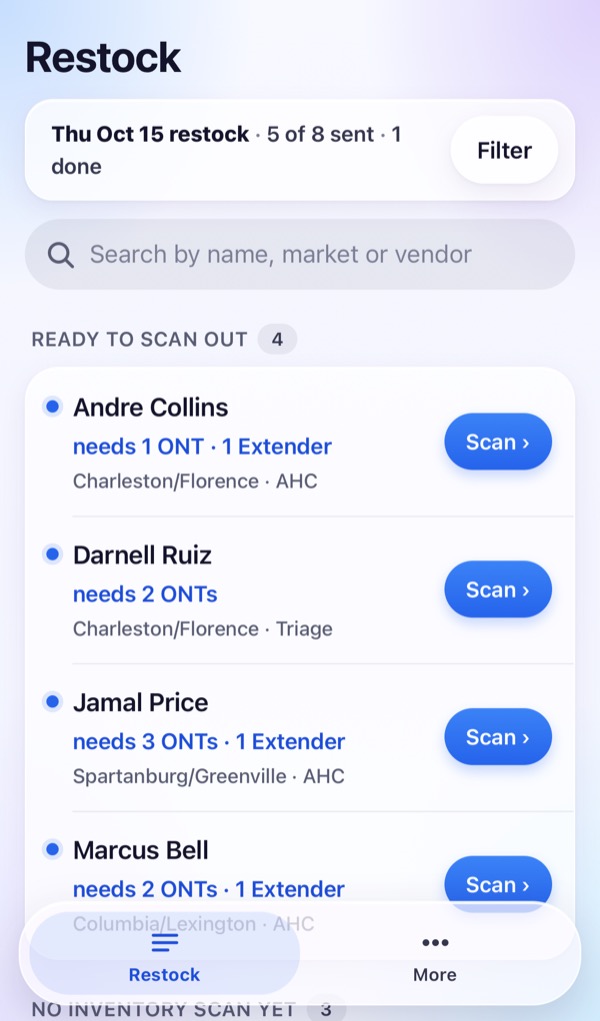
Restock lists every tech and what they still need. Use Filter or search, then tap Scan ›.
Scan each label
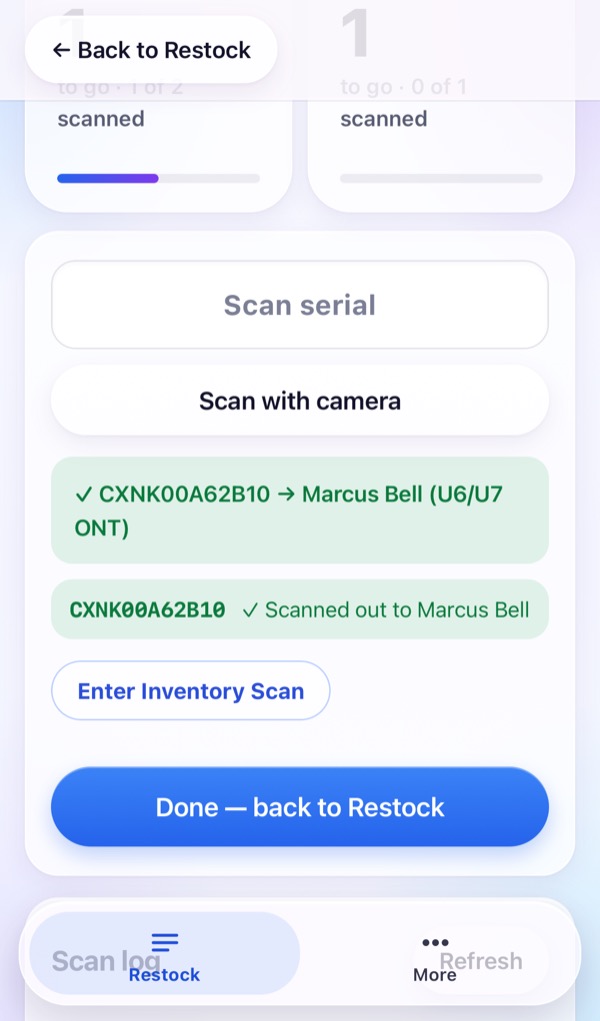
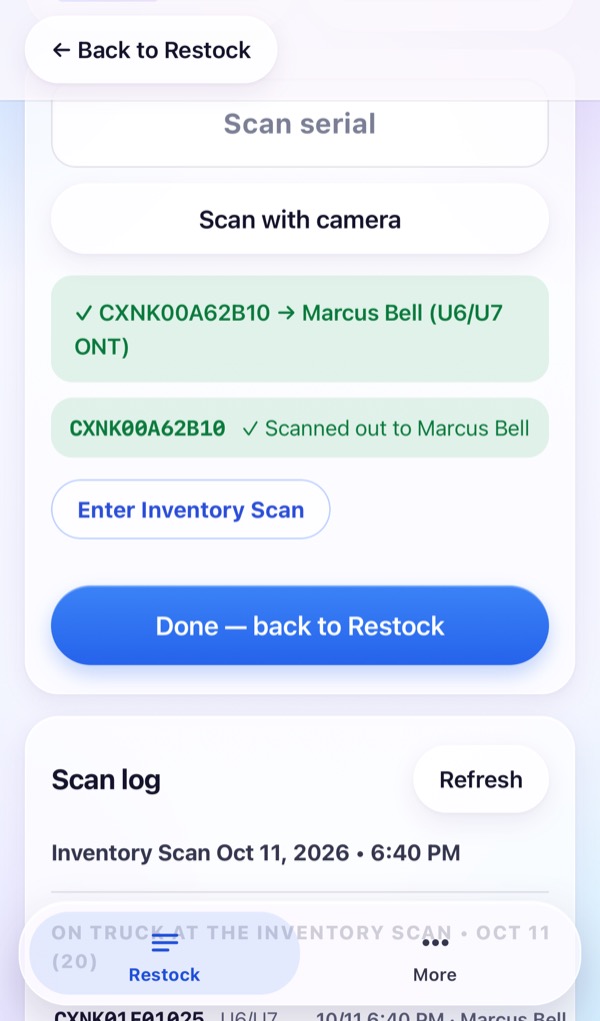
Scan the CXNK label, or tap Scan with camera. Green means it went to that tech.
Tech has no Inventory Scan
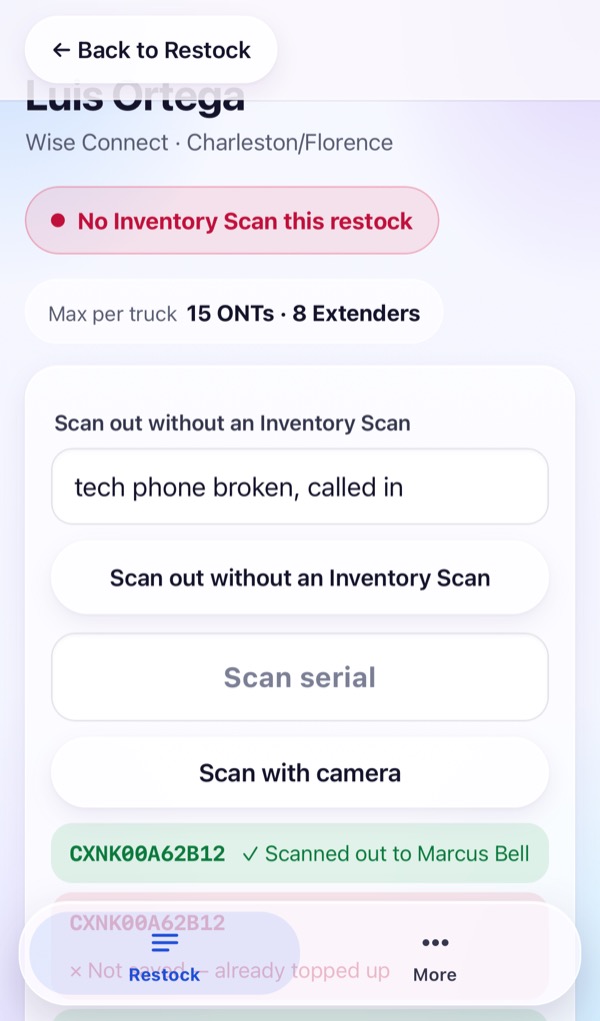
The tech shows a red No Inventory Scan this restock tag. Type why under Scan out without an Inventory Scan (at least 4 letters), tap the button, then scan.
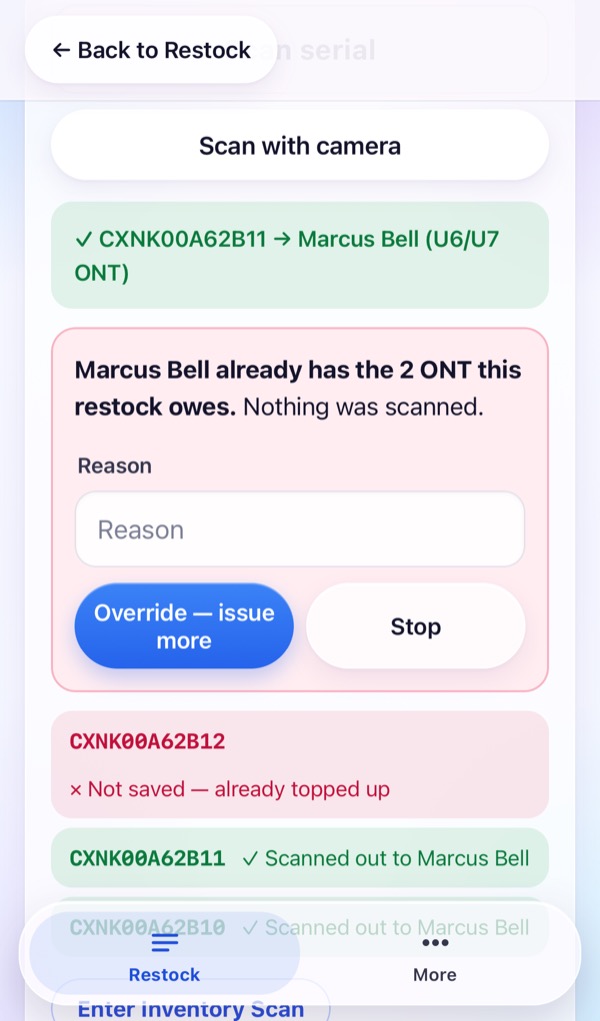
Giving more than owed
Restock stops and says nothing was scanned. Type a Reason, tap Override — issue more, then scan again. Or tap Stop.
Enter an Inventory Scan for a tech
Start it
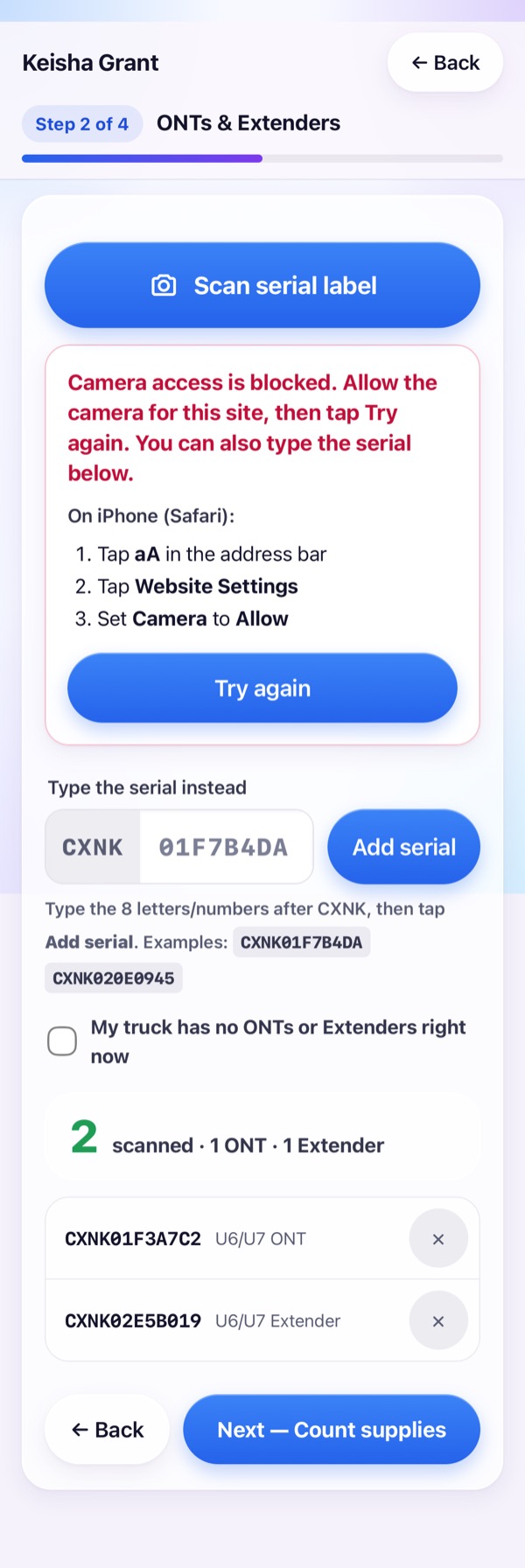
On the tech's page tap Enter Inventory Scan. Scan or type every ONT and Extender on their truck.
Count supplies, say why, send
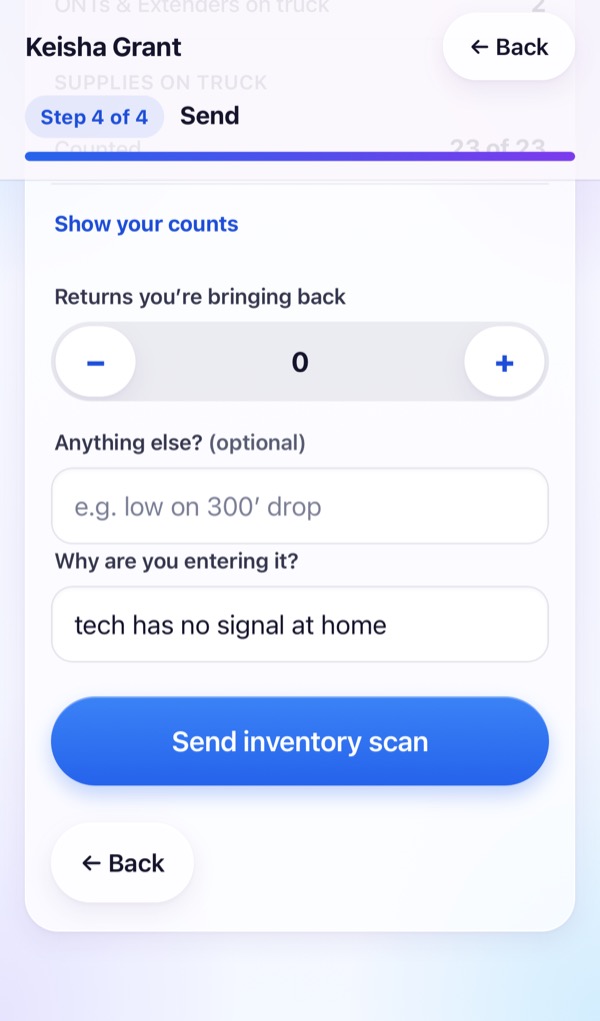
Count every supply. On the last step type Why are you entering it?, then Send inventory scan. It is saved under your name.
Saved
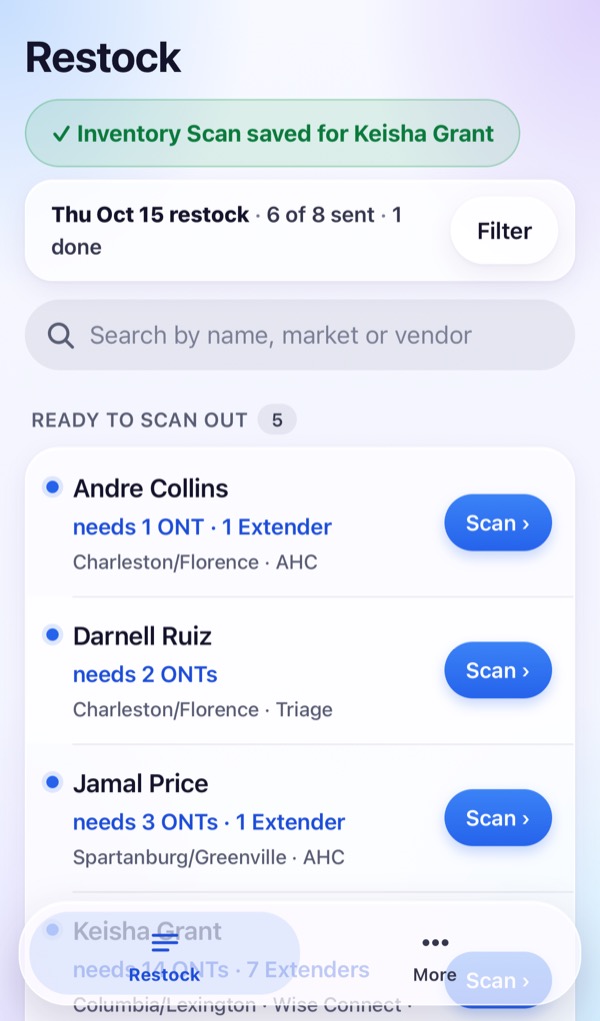
Restock shows ✓ Inventory Scan saved and the tech moves to Ready to scan out.
Good to know
What you won't see
Partners don't get Undo, Take back / transfer or Edit tech. Scanned the wrong one? Call the Lumos Team; they fix it.
Reports, warehouse and Settings are Lumos Team only.
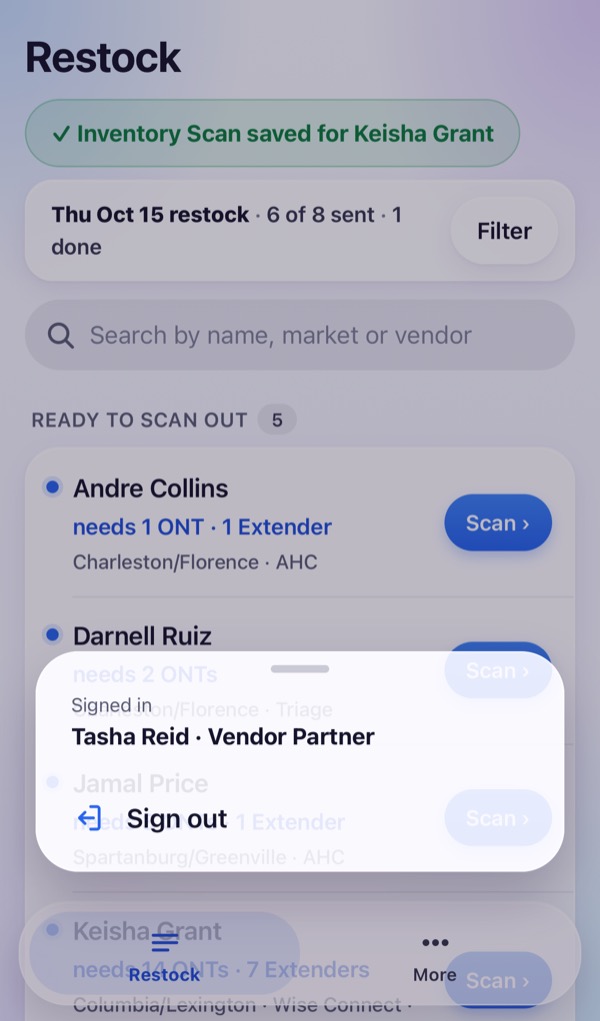
Sign out
On a phone, tap More → Sign out. On a computer, Sign Out is at the bottom left.
On a computer
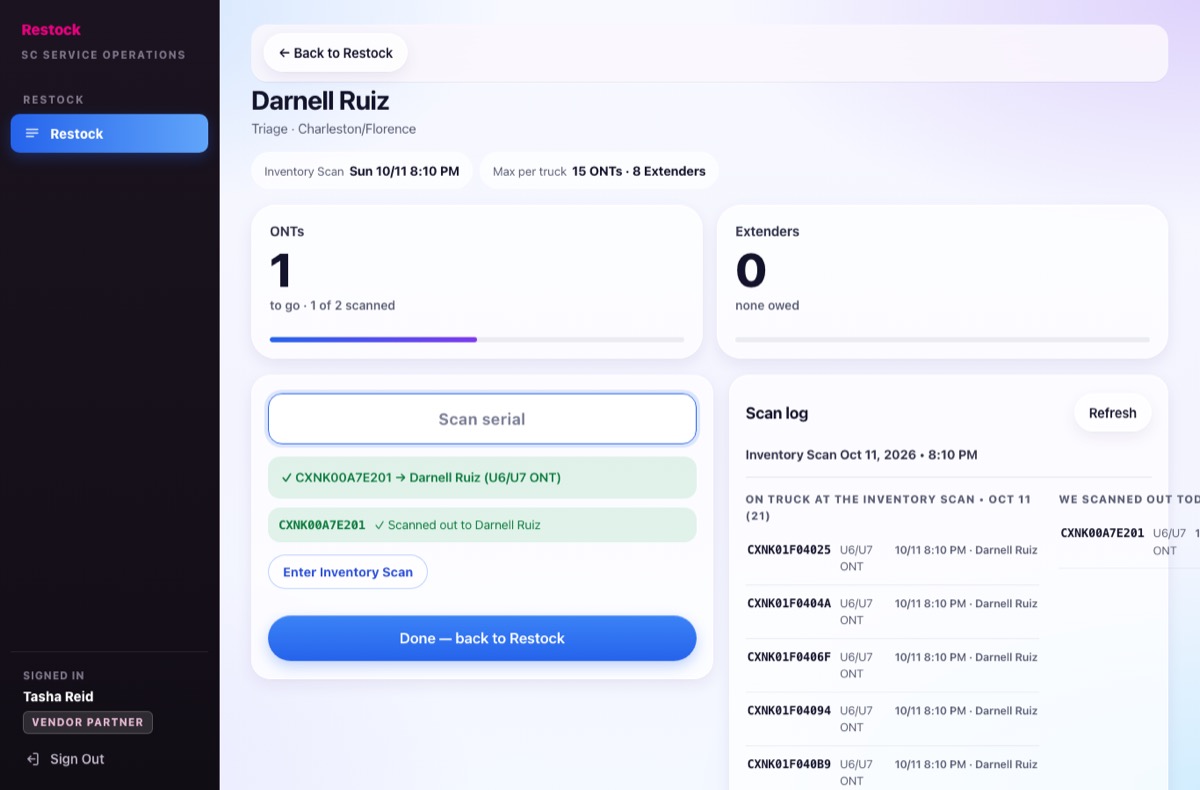
Same screens, with a USB scanner. The cursor waits in Scan serial, so just scan.
Pictures use made-up names and serials. Restock · restock.svcops.net