Run the Thursday restock
Sign in, see who sent their Inventory Scan, scan equipment out, and keep the warehouse and settings right.
Know this first
Every Thursday
Sign in
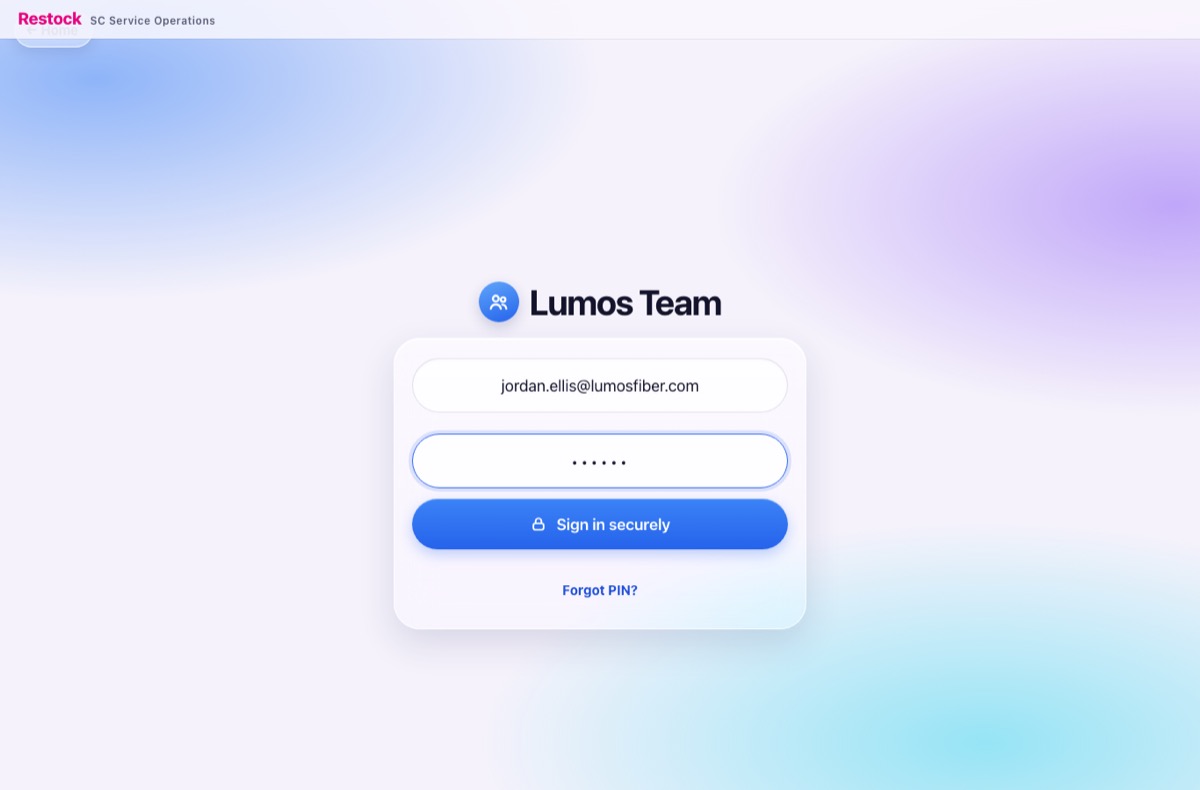
Open restock.svcops.net → Lumos Team. Type your email and your PIN under Credentials, then Sign in securely.
Forgot it? Tap Forgot PIN? for an email link.
See who is ready
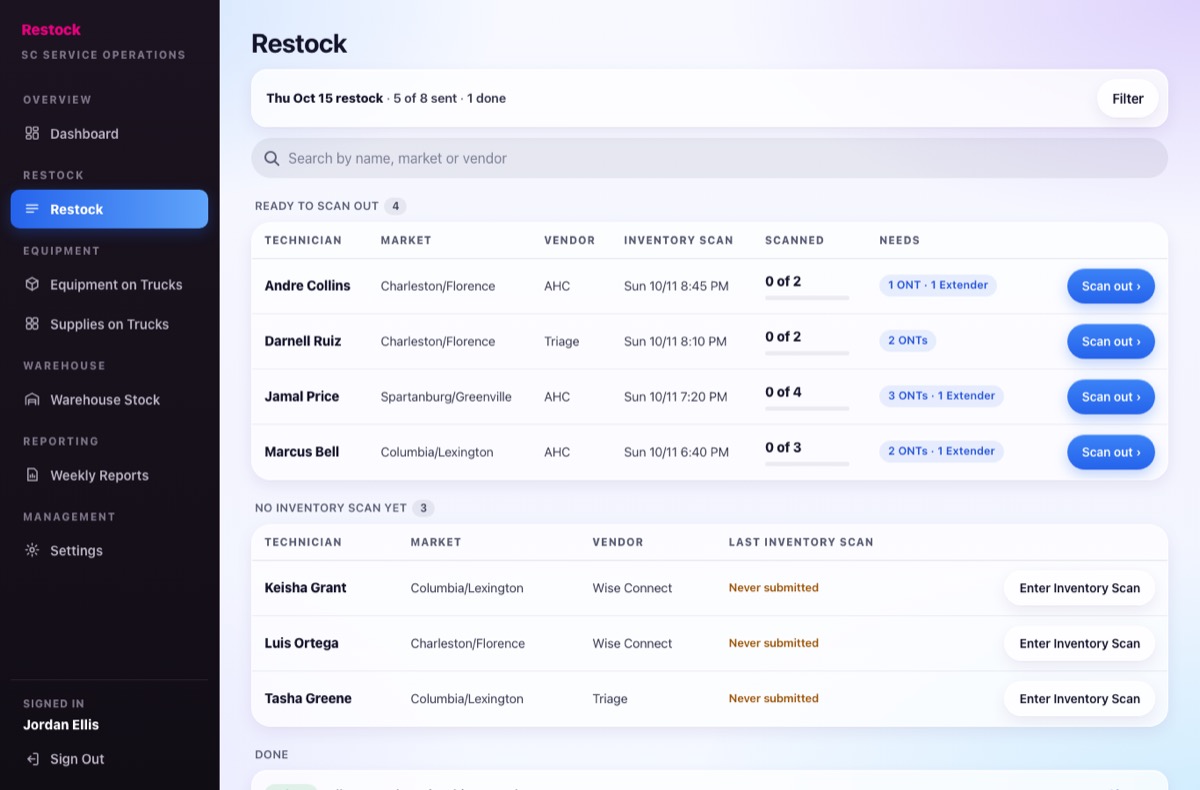
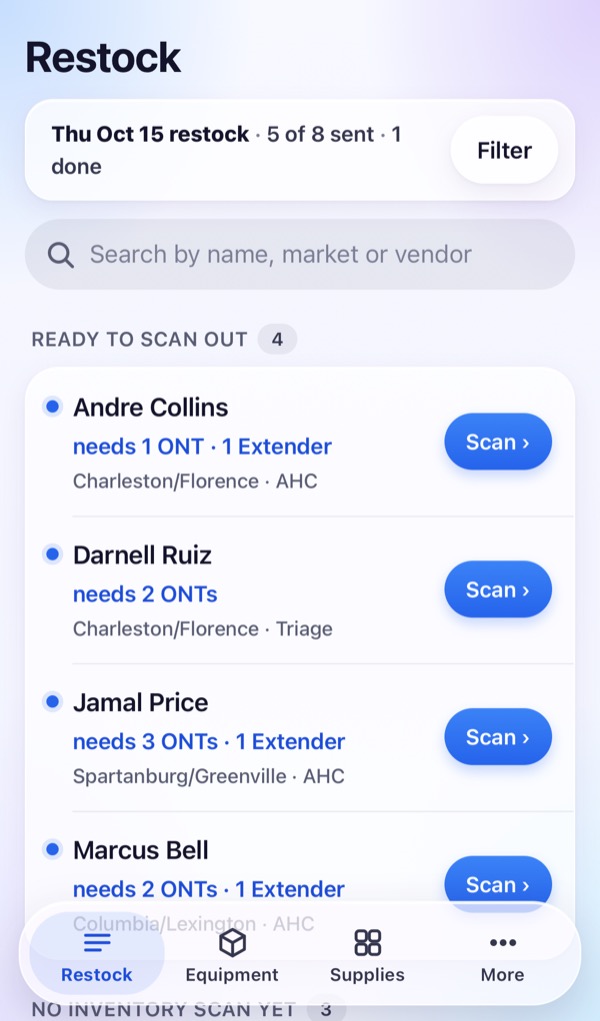
Restock lists every tech: Ready to scan out with what they still need, No Inventory Scan yet, and Done at the bottom. Use Filter or search to find someone.
Scan out
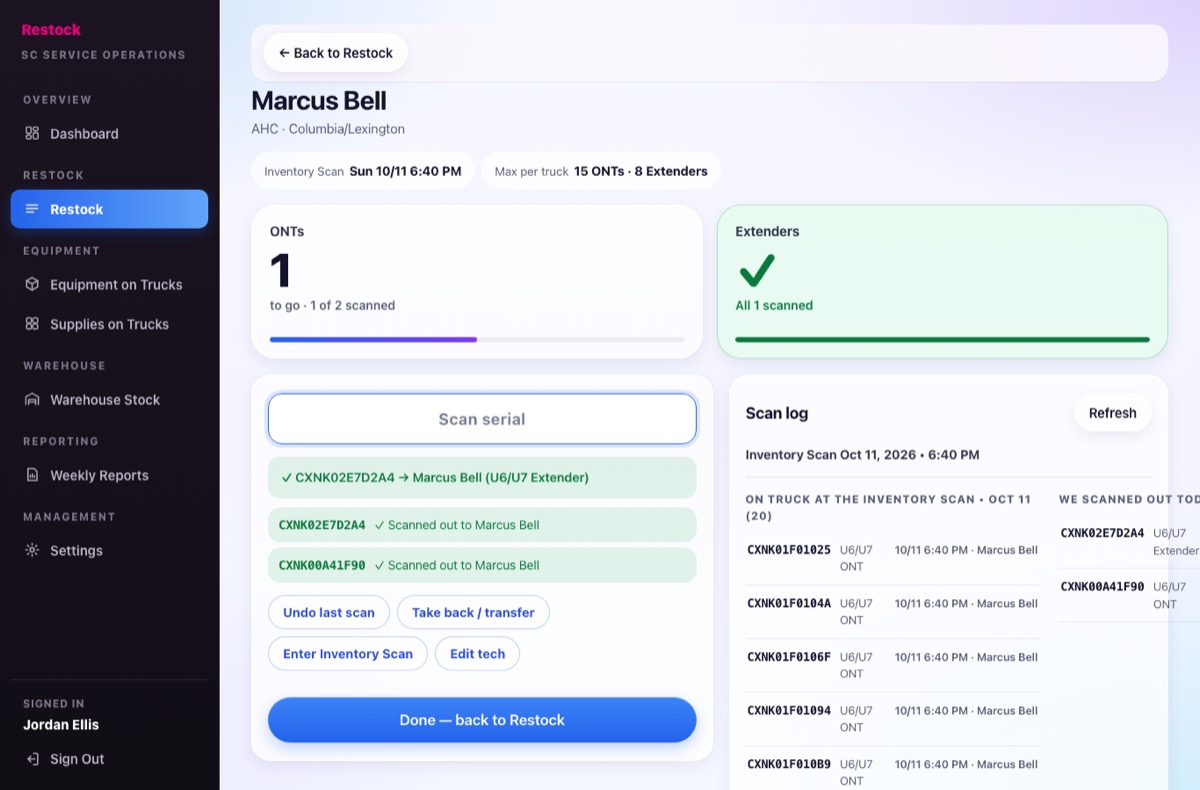
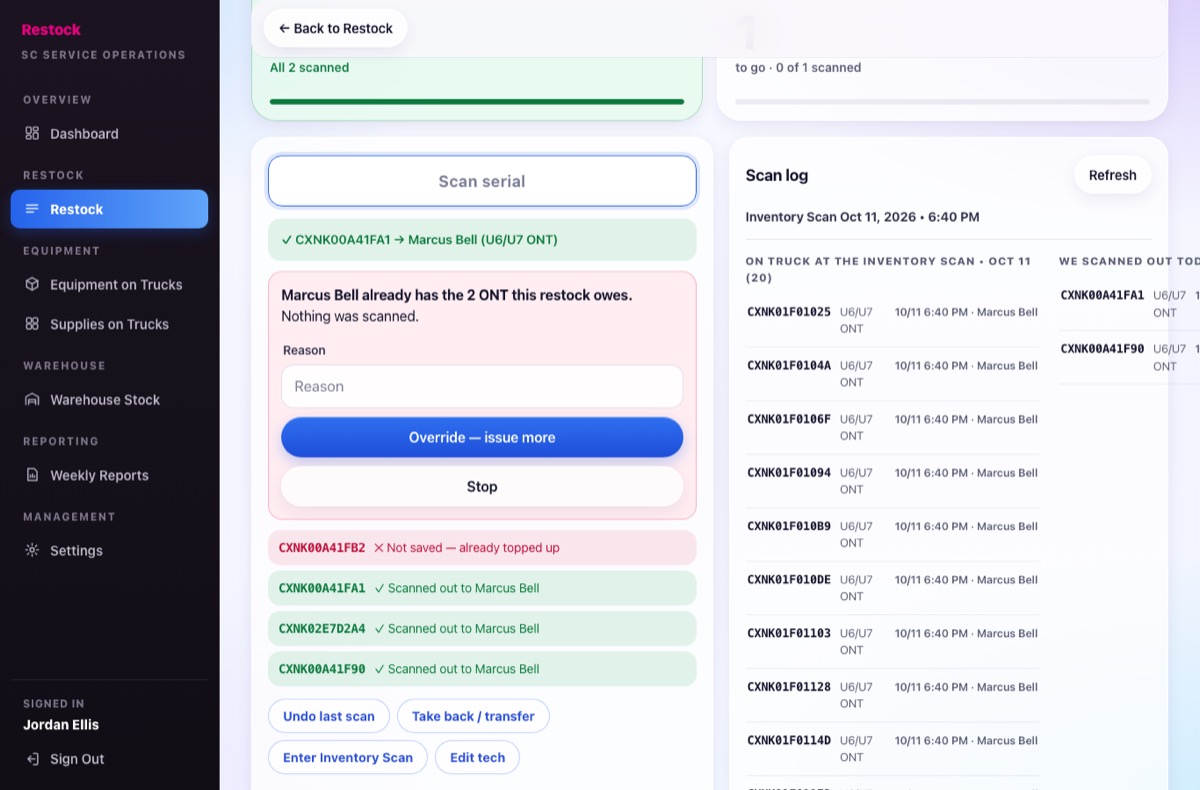
Open the tech. The cursor is already in Scan serial — scan each label with the USB scanner. Each good scan shows green and the tiles count down.
On a phone, tap Scan with camera.
Fix a mistake with Undo
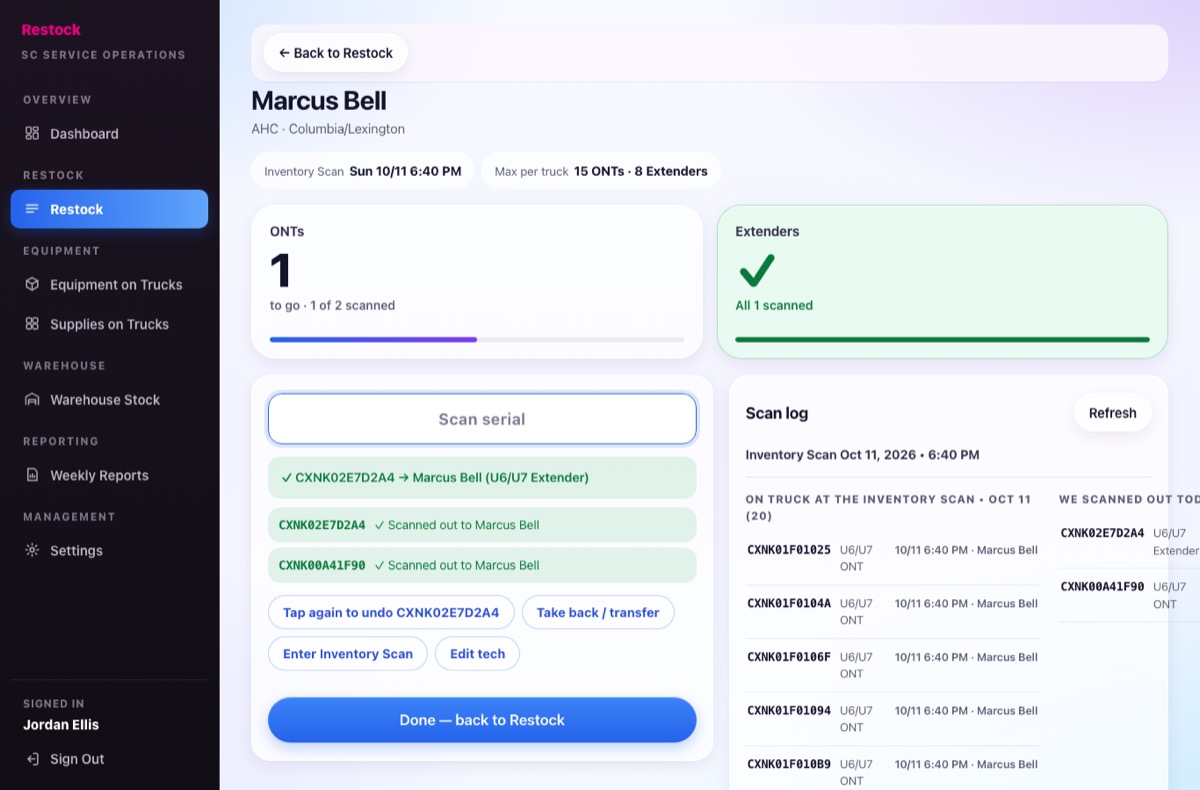
Tap Undo last scan, then tap again — the button names the serial it will remove. Only that serial comes off.
Giving more than owed
Restock stops and says nothing was scanned. Type a Reason, tap Override — issue more, then scan it again. Or tap Stop.
Take back or transfer
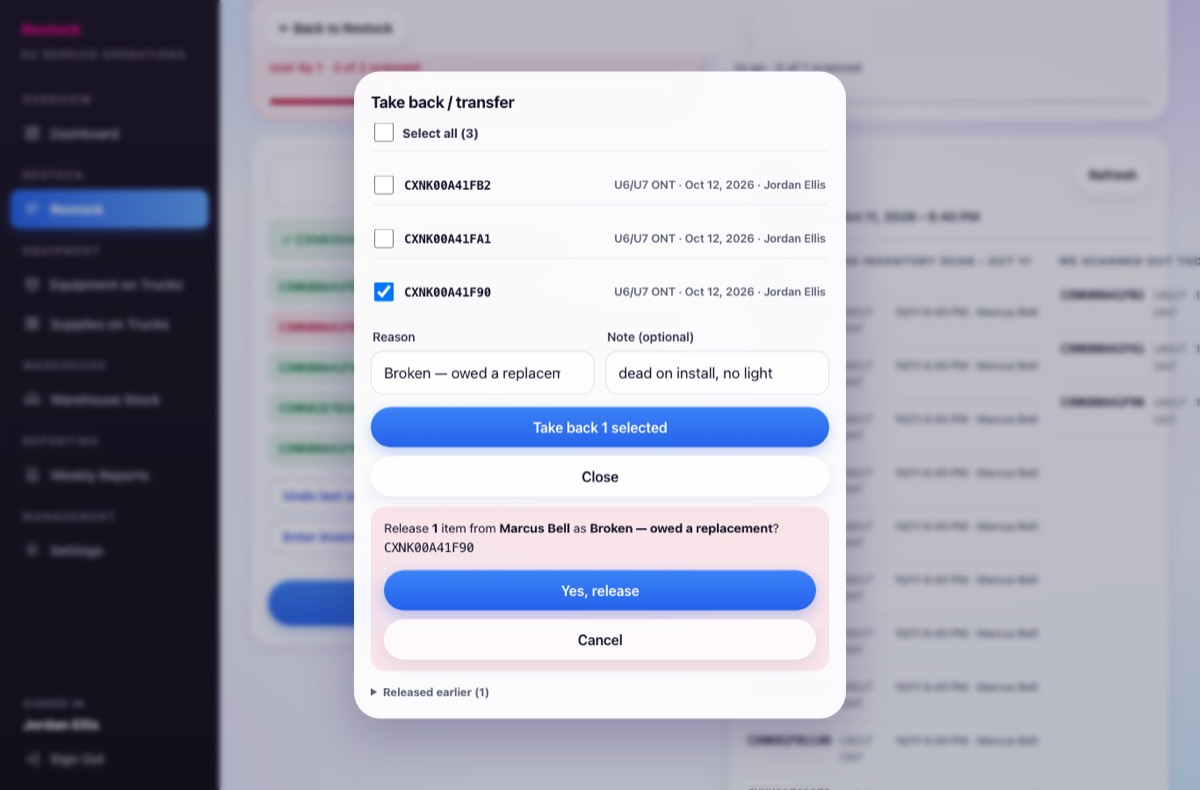
Tap Take back / transfer, tick the serial, pick a reason, then Yes, release.
- Broken — owed a replacement: the tech is owed a new one.
- Returned to warehouse, Transferred to another tech, Lost, Scanned out by mistake: the restock stays as it was.
Warehouse, reports and settings
Warehouse Stock
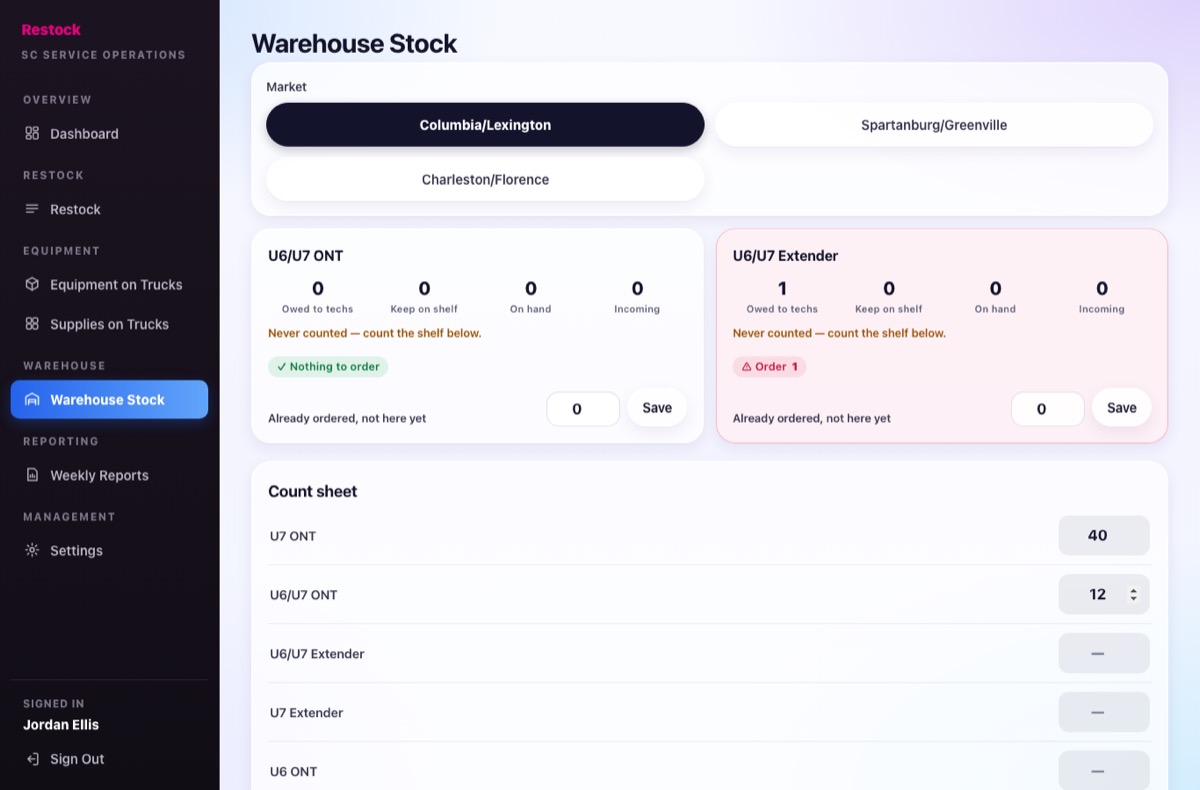
Pick a market. Each card shows what techs are owed, what to keep on the shelf, what is on hand and what to order. Enter shelf counts in the Count sheet and tap Save Inventory.
Weekly Reports
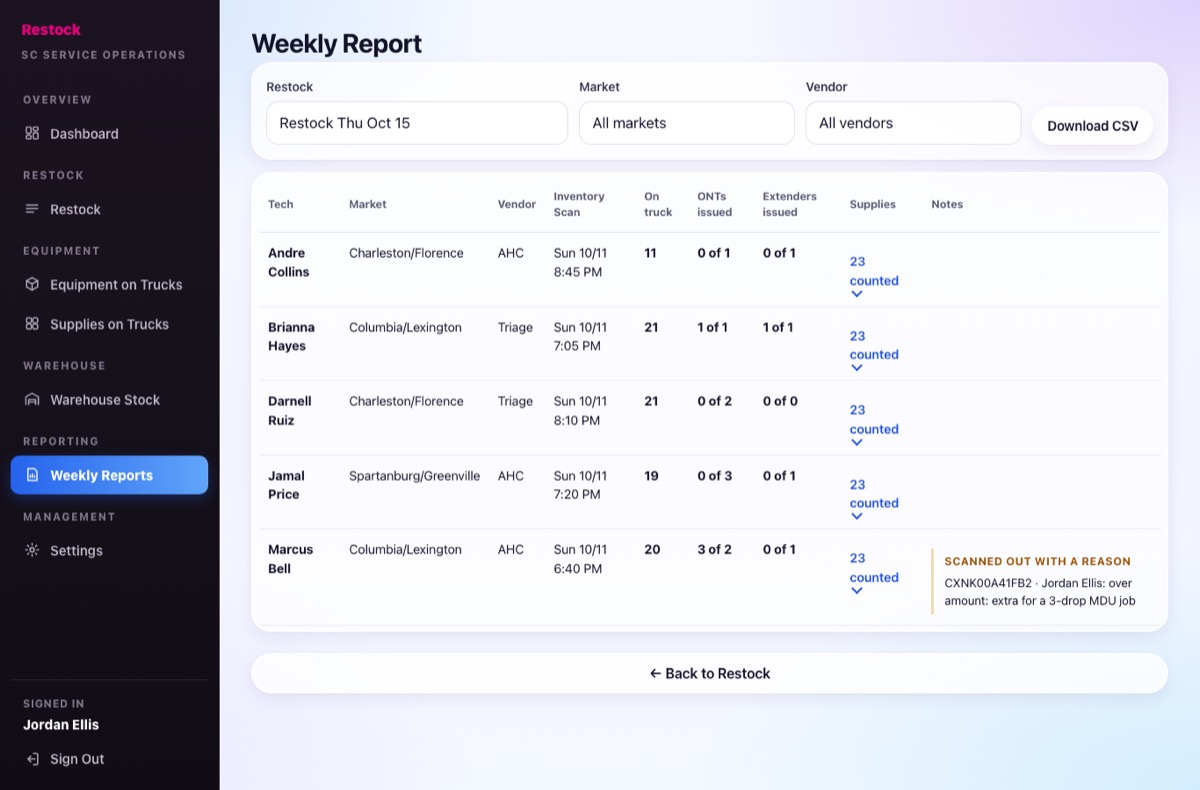
Pick the restock, market or vendor. Each row shows the tech's Inventory Scan, what was issued, supplies and notes. Download CSV for a spreadsheet.
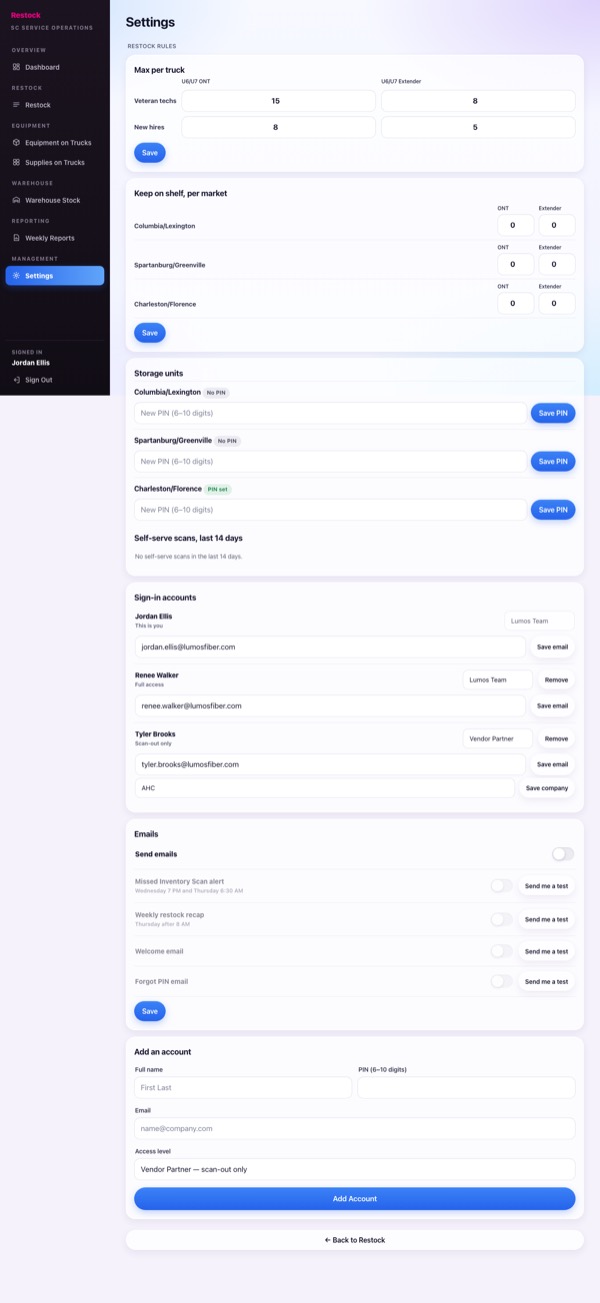
Settings
Lumos Team only.
- Max per truck: veteran and new-hire limits.
- Storage units: set each unit's PIN (6–10 digits) and see self-serve scans.
- Sign-in accounts: emails, access level, Company for Vendor Partners.
- Emails: switch each email on or off and Send me a test.
- Add an account: name, PIN, email, access level.
On your phone
Same screens, sized for the phone. The bar at the bottom has Restock, Equipment and Supplies; Settings, Weekly Reports and Sign out are under More.
Pictures use made-up names and serials. Restock · restock.svcops.net