Send your Inventory Scan
Every week you tell Restock what is on your truck. The Lumos Team uses it to restock you on Thursday. It takes about 5 minutes on your phone.
Know this first
Step by step
Open Restock and tap Start
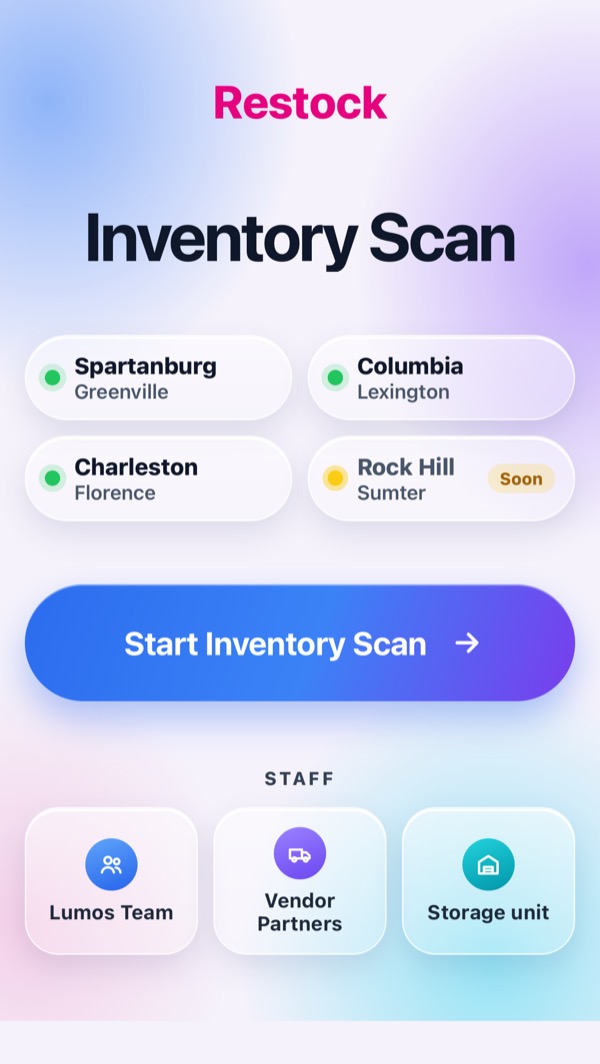
Go to restock.svcops.net on your phone and tap Start Inventory Scan.
The Staff buttons at the bottom are not for techs.
Pick your name
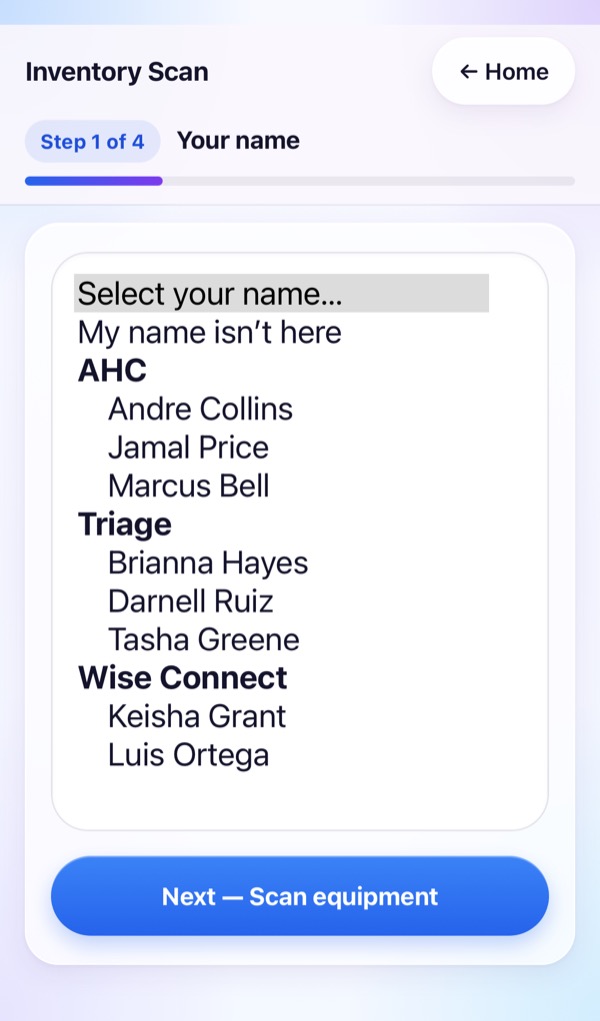
Tap the name box and pick your name. Names are grouped by company.
Then tap Next — Scan equipment.
Name not on the list?
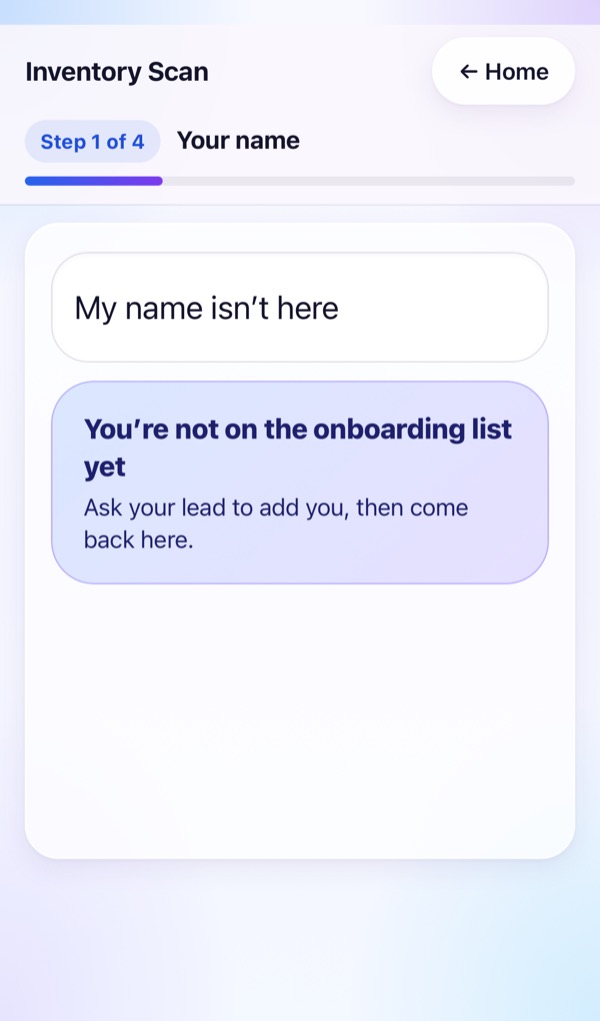
Pick My name isn't here. Restock says to ask your lead to add you on the onboarding site. Come back once you are added.
Scan every ONT and Extender on your truck
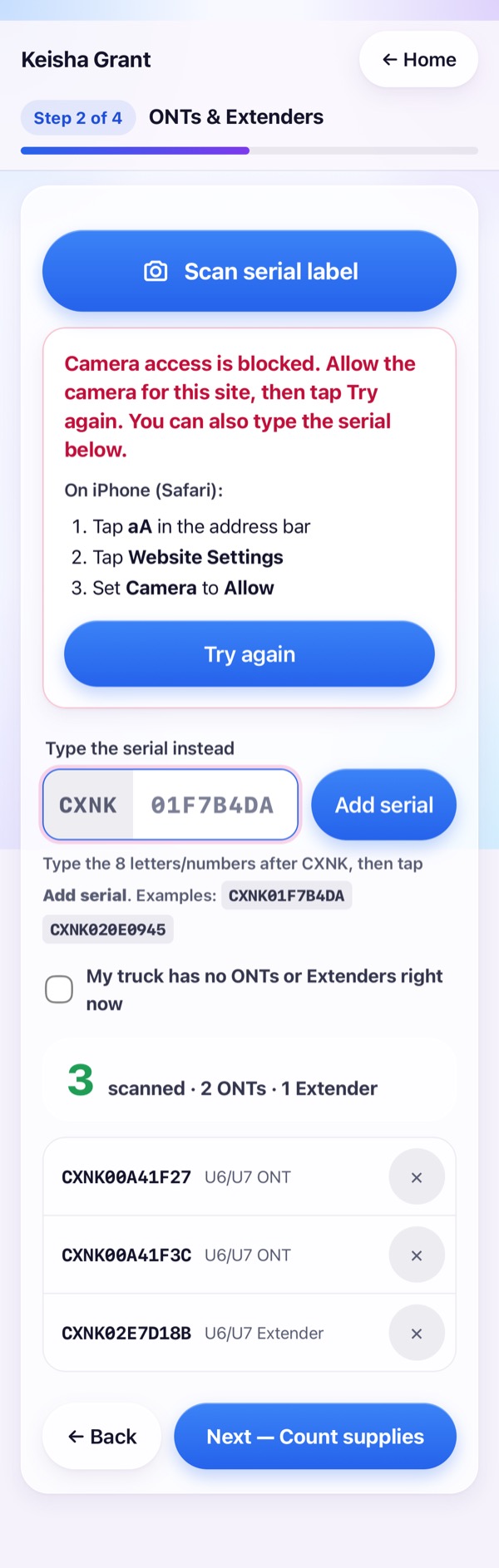
Tap Scan serial label and point the camera at each CXNK label. Restock adds it and says if it is an ONT or an Extender.
- Label won't scan? Type the 8 characters after CXNK. It adds itself at 8, or tap Add serial.
- Scanned the wrong one? Tap ✕ next to it.
- Nothing on the truck? Tick My truck has no ONTs or Extenders right now.
Count your supplies
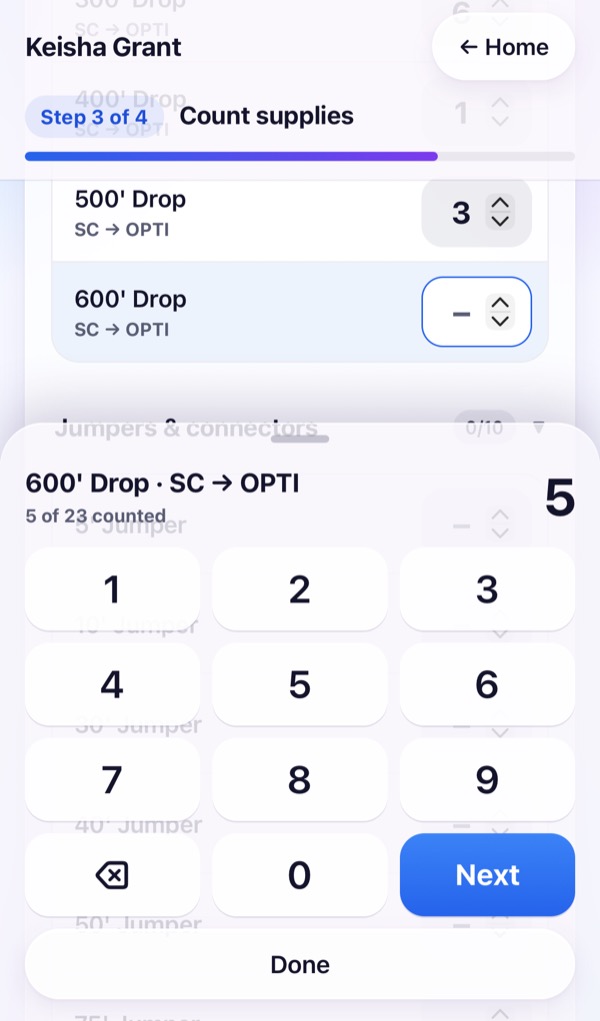
Tap Next — Count supplies, then tap the first supply. Type the number and tap Next — it moves to the next one.
- After your first week you can tap Same as last when nothing changed.
- Tap Done to close the pad.
Check it and send
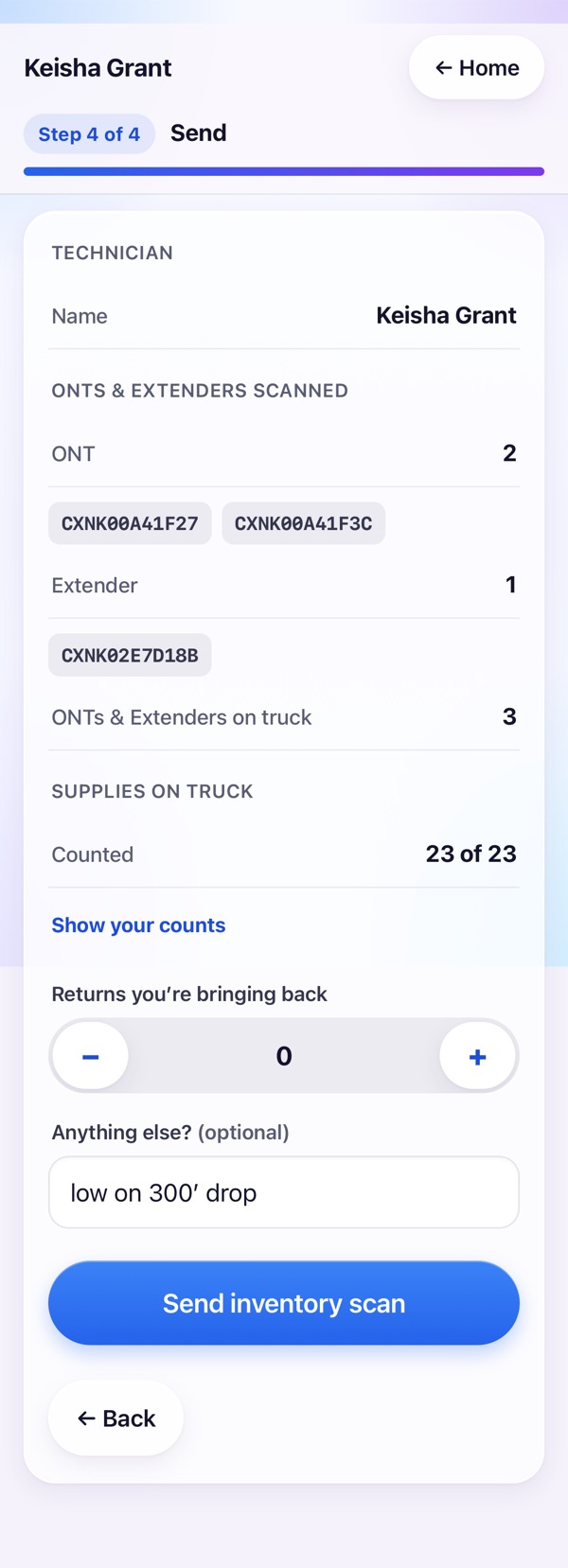
Look over the list: your name, your serials, your supply count. Add returns you're bringing back or a note if you want.
Tap Send inventory scan.
Done
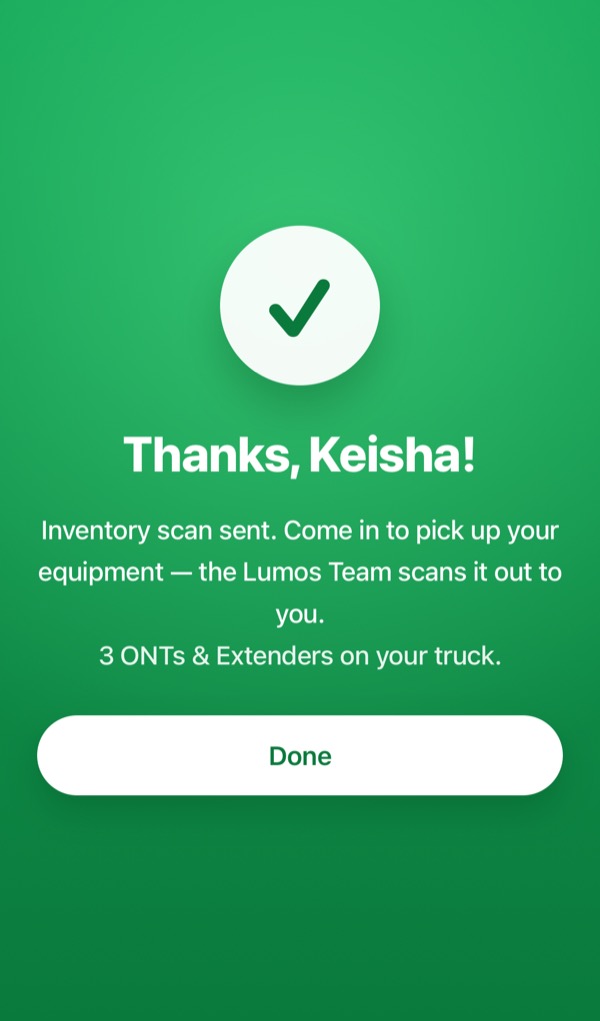
You'll see Thanks! Come to the warehouse Thursday. The Lumos Team scans your equipment out to you.
Tap Done.
If something goes wrong
Send won't go
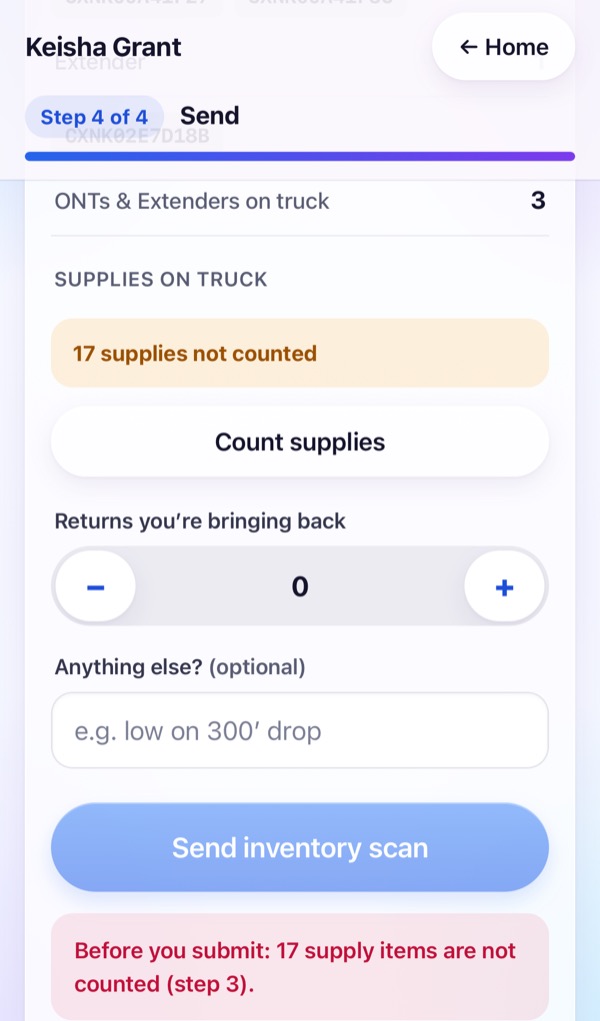
A pale Send button means something is missing. Tap it and Restock tells you what, like "17 supply items are not counted". Tap ← Back and finish.
Pictures use made-up names and serials. Restock · restock.svcops.net